How to Easily Use the Excel Scenario Manager

How often has your manager come to you with a request for reports that forecast sales? You have the data laid out in Excel, so now you need to create the forecast reports. Forecasting is a very common request to help predict trends and patterns in business, sales, and revenue. In forecasting or other predictive scenarios, the common theme is “what if”. Your manager would like to know a what if based on Sales and another what if based on Overhead. The question is, how do you create these scenario reports without having to manually create the formulas in multiple worksheets or spreadsheets?

One of the many great features of Excel is the Scenario Manager. With the Scenario Manager, you can create scenarios for your reports and save yourself the headache of doing the math yourself. We would like to walk you through the Scenario Manager to help you get started with this wonderful feature in Excel.

The idea behind Scenarios is to allow you to store multiple versions of data in the same cell. Therefore, you can store the different forecasts as a Scenario, print them or compare them side-by-side. By doing this, you do not need multiple files or excel sheets. It simplifies the process.

Here is a simple how-to for an Excel scenario

    1. Open up a new Excel worksheet
    2. Delete all sheets except Sheet1 and rename it Forecast
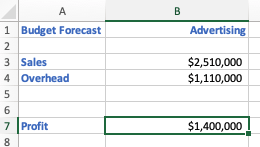
    3. Create the following example. In cell B7, enter =B3-B4 to get the sum.Excel Scenario Manager
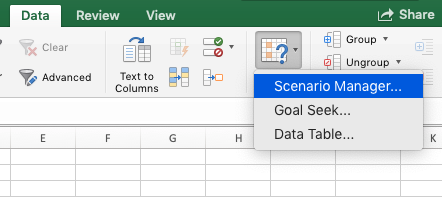
    4. On the Data tab, click What If Analysis and then click Scenario ManagerExcel Scenario Manager


    5. When the Scenario Manager opens, click the Add [+]
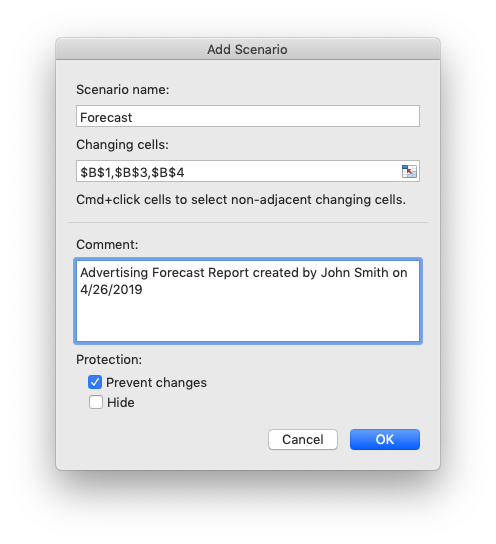
    6. Give your scenario a name. For this example, we’ll call it Forecast.
    7. Press the Tab key or click your cursor to move to the Changing cells
    8. On the worksheet, hold the Ctrl Key to select cells B1, B3, and B4 (for Mac, use the Cmd Key).
    9. In the comment section, describe your scenario.
    10. Click OK.
    11. Once you hit OK, the Scenario Values box opens.
    12. You can modify each value, but in our example they contain the values on the worksheet and do not need to be changed.
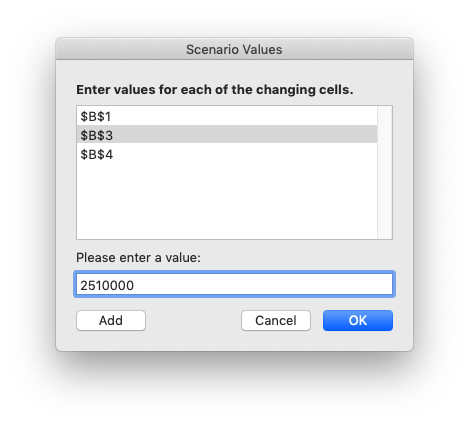
    13. Click OK to go back to the Scenario Manager and click Close to go back to the worksheet.
    14. Create a Second Scenario by changing the values in B1, B3, and B4.
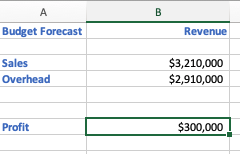
    15. Open up the Scenario Manager again and click Add [+] Button.
    16. Name the new scenario Revenue.
    17. Leave the Changing cells field the same
    18. Updated the comments and click OK.
    19. Click OK again and click close.
    20. Now that you have created your scenarios, you can choose which one to show by going back to the Scenario Manager and clicking the Show button.
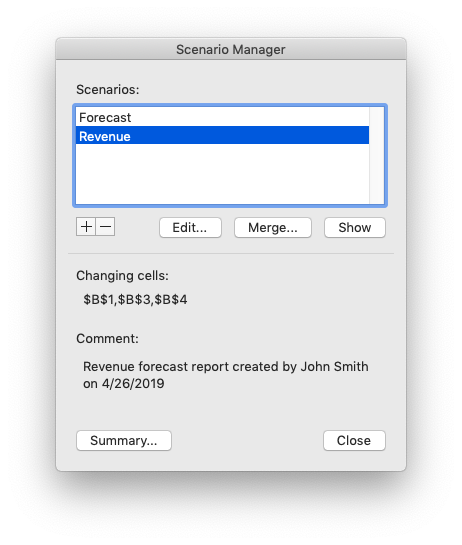
As you can see, this is an easy way to make reports all within a single spreadsheet. Not only does the Scenario Manager allow to give your manager what they need, it also reduces time and stress for you.

Scenario Manager (and Pivot Tables which we covered in our last blog) are an example of what we cover in our Excel Private Group Training. If you are interested in group training for your organizational, use the form below to contact us for a no obligation call. As a thank you for contacting us, you will receive a free download of our Excel Shortcuts Cheatsheet.

Download your free Excel Shortcut Cheatsheet
Free Cheatsheet
TOFU, MOFU, and BOFU Magnets

When you stack magnets, their power is exponential.


Stacking Magnets


Think about your best clients and what actions they took when first buying from you. Build magnets based on these actions. Here are examples of how to stack magnets:


Fractional CFO Service Company


  • TOFU – Cash-Flow Forecast Template for Founders.
  • MOFU – 3-part email class on “Scaling from 500K to 5M using videos.
  • BOFU – Free 30-minute “Financial Check” with a 90-day pilot option. 


. Residential HVAC / Plumbing Contractor


  • TOFU – Seasonal Maintenance Checklist to Avoid Breakdowns 
  • MOFU – Educational videos on “What To Check Before Calling For Help. 
  • BOFU – Free home system inspection plus a discount on annual plans. 


Specialty Retailer or E-Commerce Shop


    • TOFU – “Find Your Perfect Product Style” quiz with personalized recommendations and a small first-order discount. 
    • MOFU How-To Guides, Lookbooks, and Comparisons
  • BOFU – Limited-time starter kit, cart-abandonment coupons, and free shipping.

This “magnet stack” approach—clear value at each stage, linked to your core offer—will pull the right prospects from curiosity to commitment.


Getting it Done


Apex Advisory Group, a professional services firm, had four sales reps plus the owner selling and servicing clients, but deals were inconsistent and follow-up was ad-hoc.


Apex engaged CCC, www.cccsolutions.com, to help build their sustainable sales pipeline. The team focused on the ideal client’s journey, selected magnets, and created a sales process to manage prospects. The magnets were:


    • TOFU – Risk and Readiness Checklist.
  • MOFU – Quarterly Webinars and Case Studies
  • BOFU – Business Circle Invitation


CCC set up X2CRM to segment, track, and reach prospects and remind salespeople to follow up. At every stage, the CRM captured new information and responded based on specific prospect actions.


Apex Today


Apex now has a repeatable sales engine: Their magnets consistently attract new prospects, X2CRM nurtures and scores them, and the sales team focuses its energy on the best opportunities.


With CCC Solutions guiding strategy and configuration, Apex built a sustainable, measurable pipeline that increased sales while reducing the chaos of manual follow-up.


FREE ebook:
Build More Revenue with Less Follow Up Fatigue

Recent Blogs

Use Lead Magnets to Build Your Sales Engine

Use Lead Magnets to Build Your Sales Engine

Lead magnets are valuable offers that attract the right people, capture their contact information, and lead them to purchase. Concurrently, you get to see who the real prospects are!   Core Magnet Principles   Strong magnets:   Offer specific value...

Get a CRM – Are You Nuts

Get a CRM – Are You Nuts

For professional service companies like Edemco, a team of six, including three sales reps, the decision to implement a CRM wasn’t taken lightly, said Edith Demona, Edemco’s owner.  Edemco’s team felt growing pains as it managed client service, marketing, and sales. ...

Your Personal Touch Sells

Your Personal Touch Sells

Your personal touch is the reason buyers buy from you. As a seller of goods or services, connecting personally with your buyer builds the relationship needed to increase sales conversions.   Personal Touch Obstacles   Hurdles that reduce personalized...